What Is a .dd2vtt File? The Universal VTT Format Explained
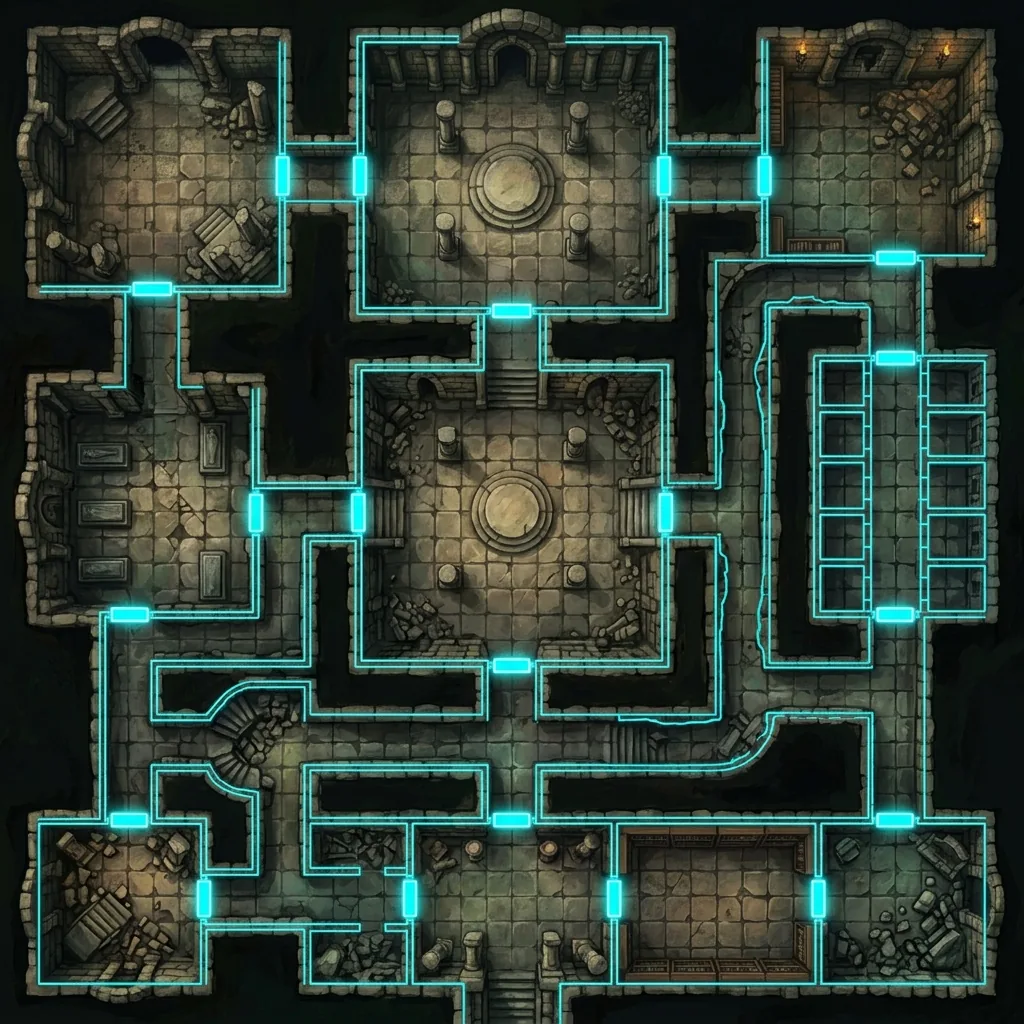
If you have ever downloaded a battle map and found a mysterious .dd2vtt file sitting next to the usual PNG, you are not alone in wondering what to do with it. A .dd2vtt file is a Universal VTT file: a single JSON container that bundles your map image together with machine-readable data about wall segments, door positions, light sources, and grid dimensions. Instead of importing a flat picture and then spending half an hour drawing walls by hand, you import one file and your virtual tabletop already knows where every corridor, door, and torch belongs.
In this guide, we will explain what lives inside a Universal VTT file in plain English, why it beats importing a bare image, and how to bring one into Foundry VTT, Roll20, Fantasy Grounds, Owlbear Rodeo, and other platforms. We will also cover where to find battle maps that ship in the format, including AI generators that export it automatically.
What is a .dd2vtt file?
Under the hood, a .dd2vtt file is a JSON document, which is a structured text format that software can read reliably. If you open one in a plain text editor, you will not see an image at all. You will see organized blocks of data: the map image stored as encoded text, followed by lists of coordinates that describe walls, portals, and lights.
The format is commonly called Universal VTT because it was designed as a neutral hand-off between map-making tools and virtual tabletops. You will sometimes see the same structure carried in a .uvtt file instead; the contents follow the same convention, and most importers accept both extensions. Map editors such as Dungeondraft and DungeonFog export the format, and a growing list of virtual tabletops can read it either natively or through a free add-on.
What is inside the file
You never need to read the JSON yourself, but knowing what travels inside the container explains why the format is so useful. A Universal VTT file carries five kinds of information.
- The map image. The artwork itself is embedded directly inside the file as encoded text, so there is no separate image to lose track of. One file contains everything.
- Grid dimensions. The file records how many squares wide and tall the map is, along with the pixel size of each square. The receiving VTT uses these numbers to lay its own grid over the art with perfect alignment on the first try.
- Wall segments. Walls are stored as chains of coordinate points that trace the rooms and corridors. Your VTT converts them into line-of-sight blockers automatically, so fog of war behaves correctly the moment the scene loads.
- Doors and portals. Openings are flagged separately from solid walls, which lets the importer create interactive doors that the Game Master can open and close during play.
- Light sources. Torch sconces, braziers, and glowing crystals arrive as light entries with a position, range, and color, ready to drive dynamic lighting without any manual placement.
Think of it as the difference between receiving a photograph of a house and receiving the photograph plus the architect's floor plan. The image shows your players what the space looks like; the metadata tells the software how the space actually works.
Why it beats importing a bare image
Anyone who has imported a plain image into a virtual tabletop knows the ritual that follows. You nudge the grid scale by a few pixels at a time until the software's squares line up with the art. You trace every wall of a dungeon segment by segment so that fog of war does not leak through solid stone. You place each torch and brazier as a separate light source. For a moderately complex dungeon, that busywork can easily consume twenty to thirty minutes per map.
A Universal VTT file eliminates all three chores at once. The grid dimensions arrive inside the file, so alignment is automatic. The walls arrive pre-drawn, so line of sight and token vision work immediately. The doors and lights arrive preconfigured, so the scene is playable seconds after import. If you have only ever worked with plain images, our walkthrough on how to use AI maps in VTT platforms covers that manual process step by step, and it is precisely the homework a .dd2vtt file lets you skip.
How to import a .dd2vtt file into each VTT
Support for the format has spread across nearly every major platform, though the import path differs slightly on each one.
Foundry VTT
Foundry has the smoothest experience thanks to the free Universal Battlemap Importer module. Install it from the module browser, enable it in your world, and point it at your .dd2vtt file. The module builds a complete scene with the background image, grid, walls, doors, and lights already in place. If you want to fine-tune the result afterward, our Foundry VTT battle map setup guide covers grid, wall, and lighting adjustments in detail.
Roll20
Roll20 handles the format through a UniversalVTTImporter API script. Because API scripts are a Pro-tier feature, you will need a Pro subscription to use it. Once the script is installed in your game, it unpacks the file onto the page with the dynamic lighting walls included. If you are on the free tier, you can still use the map itself: export the PNG version instead and set the page grid manually.
Fantasy Grounds
Fantasy Grounds Unity imports Universal VTT files natively, with no extension required. The occluders and lights come through as part of the import, which pairs nicely with the platform's built-in vision system. For the surrounding workflow, see our Fantasy Grounds battle map setup tutorial.
Owlbear Rodeo, MapTool, and Arkenforge
Owlbear Rodeo supports the format through a community uvtt-importer extension, which is a quick add-on install. MapTool and Arkenforge both support Universal VTT files as well, so even tables running less mainstream platforms can benefit from the pre-drawn walls and lighting.
Where to get maps in the .dd2vtt format
There are two main routes. The first is drawing your own maps in an editor such as Dungeondraft or DungeonFog. Both tools give you complete manual control and export clean Universal VTT files, but building a detailed map by hand still takes hours per location.
The second route is AI generation. Text to Tabletop exports .dd2vtt files natively from AI-generated maps: you type a description of the scene, generate the map in seconds, and download either a plain PNG or a Universal VTT file with the grid alignment already baked in. Because the AI battle map generator enforces a strict top-down perspective and strips out pre-baked grids, the exported file drops into Foundry or Fantasy Grounds with squares that line up perfectly on the first import. You can even select a section of a finished map and regenerate just that area before exporting, so the file you hand to your VTT is exactly the encounter you imagined.
One file, zero busywork
The .dd2vtt format exists to solve a specific, familiar frustration: beautiful map art that takes longer to configure than it took to find. By packing the image, grid, walls, doors, and lights into a single container, the Universal VTT format turns a half-hour setup chore into a single import click on almost any platform you play on. If you would like to generate custom battle maps that export straight to .dd2vtt with the tactical data included, sign up for the Text to Tabletop app today and start generating custom maps in seconds.
Tyler V
Lead Developer and UX Designer at Text to Tabletop. Passionate about helping GMs and players create better TTRPG experiences.
Ready to Forge Your Next Battle Map?
Describe the encounter and get a grid-aligned, top-down battle map in seconds, then regenerate any area until it matches your vision.
Generate Your First Map Free3 free map tokens · no credit card required