Fantasy Grounds Battle Map Setup: Importing AI Battle Maps Step-by-Step
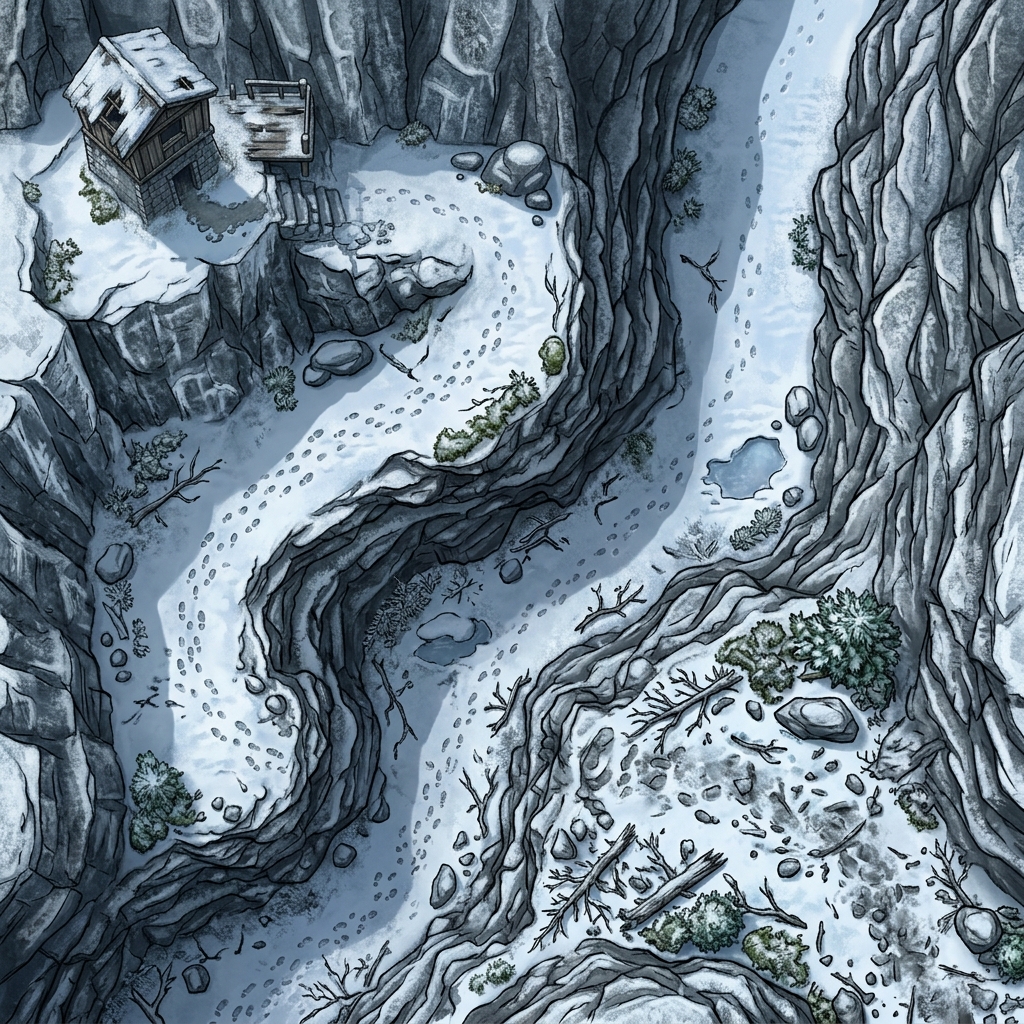
When it comes to virtual tabletops, Fantasy Grounds Unity has earned a dedicated and highly sophisticated user base. GMs love it for its robust automation, combat tracker precision, and deep rule library support. However, setting up a fantasy grounds battle map in this platform requires a different workflow compared to other virtual tabletops. FGU features a modular asset structure that gives you massive flexibility, but it comes with a steep learning curve. If you want to use custom AI art to build tactical spaces, understanding this import system is essential. By learning the precise steps to import, align, and illuminate your scenes, you can bring your campaigns to life without wrestling with the interface.
In this guide, we will walk you through a complete, step-by-step tutorial on how to execute a fantasy grounds map import. We will cover file optimization, grid alignment, wall configuration, and dynamic lighting setups. Whether you are using maps for tactical combat or narrative exploration, these steps will ensure your assets function perfectly.
Fantasy Grounds Unity vs Classic
Before we dive into the setup steps, it is important to clarify the difference between the two versions of the platform. Classic is the legacy version, which operates on an older 2D engine. It lacks advanced features like dynamic line of sight, active lighting, and particle effects, making it harder to set up a fantasy grounds battle map with modern cartography features.
Unity is the current standard. It utilizes a modern game engine that supports complex layers, paint strokes, and dynamic lighting. The workflow detailed in this tutorial focuses exclusively on Unity. If you are still running Classic, we highly recommend upgrading to access these modern cartography features. A modern fgu battle map relies heavily on the Unity engine's visual features to create immersive tactical encounters.
Step 1: Prepare Your Fantasy Grounds Battle Map
The first step in your setup occurs before you even launch the virtual tabletop. AI map generators can produce files with very high resolutions and file sizes. While FGU can handle large files, massive images will cause lag for players with slower internet connections during session loading.
We recommend saving your maps as PNG or high-quality JPG files. Aim for a resolution of 70 to 100 pixels per grid square. For a standard 30 by 20 grid layout, this translates to an image size of roughly 2100 by 1400 pixels. Keep your file sizes under five megabytes to ensure fast transfer speeds. If you need clean, high-resolution assets that are pre-optimized, you can use the Text to Tabletop app to generate maps that strip out grids and tokens, making grid alignment extremely simple.
Step 2: Add the Image to Your Campaign
Once your image file is ready, you need to place it in your campaign folder. Fantasy Grounds does not use a simple drag-and-drop system. Instead, it reads files from a specific folder structure on your computer.
First, open the application and launch your campaign. Look at the top right of the interface and click the Assets button. This will open the Asset Library window. At the bottom of this window, click the folder button labeled Campaign. This action opens your local operating system's file explorer directly to your campaign's images folder. Simply copy your prepared image file and paste it into this folder. Close the file explorer window. In the FGU Assets window, click the Refresh button to make the new file visible.
Step 3: Create the Map Record
Now that the image asset is in the campaign folder, you must convert it into a map record. FGU separates raw assets from playable maps.
In the Assets window, search for your file name. Drag the image from the Assets library and drop it onto the Images list (accessible via the Images button on the right sidebar). This creates a new map record containing your image. Open this new record. We recommend establishing a consistent naming convention for each fantasy grounds battle map, such as prefixing the name with Battle Map or Encounter, to keep your campaign database organized as your adventure grows.
Step 4: Set the Grid
Setting up the grid is crucial for combat automation. Since FGU calculates spell areas, character movement, and ranged attacks based on grid coordinates, alignment must be precise.
With the map record open, click the Layers button on the right side of the map window. Next, click the Grid button. In the grid settings, you can draw a grid manually or type the exact pixel dimensions. If you generated a gridless image using an AI tool, look for a prominent visual element like a hallway or room floor to draw a five-foot square. FGU will automatically tile the grid across the rest of the canvas. You can use the offset controls to nudge the grid lines until they align perfectly with your map's visual boundaries.
Step 5: Line of Sight Walls (LOS)
FGU features an exceptional Line of Sight (LOS) system that blocks player vision behind walls, doors, and pillars.
To draw walls, select the Line of Sight button in the map layers panel. Click the Wall icon. You can now use the drawing tools to place line segments along your map's structural barriers. Click to place a starting point, and click again to draw connected wall segments. Use the Door tool for entryways, which players or GMs can toggle open and closed during play. If you want to save time, you can also import XML files containing pre-drawn third-party LOS data if you purchased maps from commercial publishers. However, for custom AI maps, drawing basic wall lines yourself is highly intuitive and takes only a few minutes.
Step 6: Add Lighting
Dynamic lighting brings your environments to life. You can add light sources to represent campfires, torches, glowing crystals, or ambient sunlight.
To configure lighting, click the Lighting button in the map layers panel. Click the Add Light button and click on the map where the light source is located. In the settings panel, you can choose the color, intensity, and falloff radius of the light. For example, a torch should have a warm yellow hue with a twenty-foot bright radius and a twenty-foot dim radius. Make sure to toggle the Enable Lighting option in the map settings to activate the shadows and illumination for your players.
Optional: Tokens and Pins
To round out your tactical scene, you can add tokens and story pins. Drag character and monster tokens from your combat tracker directly onto the grid.
You can also drag story entries, encounter records, or treasure parcels onto the map while holding the CTRL key. This creates a shortcut pin that only the GM can see. Clicking this pin instantly opens the linked record, allowing you to read room descriptions, trigger traps, or place monsters the moment your players enter the room.
Common Issues
If you encounter performance issues, check your file sizes. GMs running FGU with dozens of high-resolution images loaded simultaneously may experience system lag. We recommend closing maps that are not actively in use.
Another common issue is grid misalignment. If your grid does not align, double-check if your image has a pre-baked grid. Using a gridless image is always the best path, as it prevents visual conflicts with FGU's digital lines. For a detailed guide on handling these visual alignments across different platforms, read our article on how to use AI maps in VTT environments. If you want to compare this setup process to other popular virtual tabletops, check out our guide on Foundry VTT battle map setup for a direct comparison.
Lead Your Party to Victory
Taking the time to configure your maps in Fantasy Grounds Unity transforms standard combat into an immersive, tactical experience. By setting up grids, walls, and lighting, you ensure that every fantasy grounds battle map you use lets your players focus on the strategy of the encounter.
If you are ready to generate custom, gridless battle maps optimized for Fantasy Grounds Unity, visit the Text to Tabletop app. Create a high-quality tactical arena for your next session today and make your prep faster than ever.
Tyler V
Lead Developer and UX Designer at Text to Tabletop. Passionate about helping GMs and players create better TTRPG experiences.
Ready to Forge Your Next Battle Map?
Describe the encounter and get a grid-aligned, top-down battle map in seconds, then regenerate any area until it matches your vision.
Generate Your First Map Free3 free map tokens · no credit card required