Owlbear Rodeo Battle Maps: Setup, Grid Alignment, and Dynamic Fog
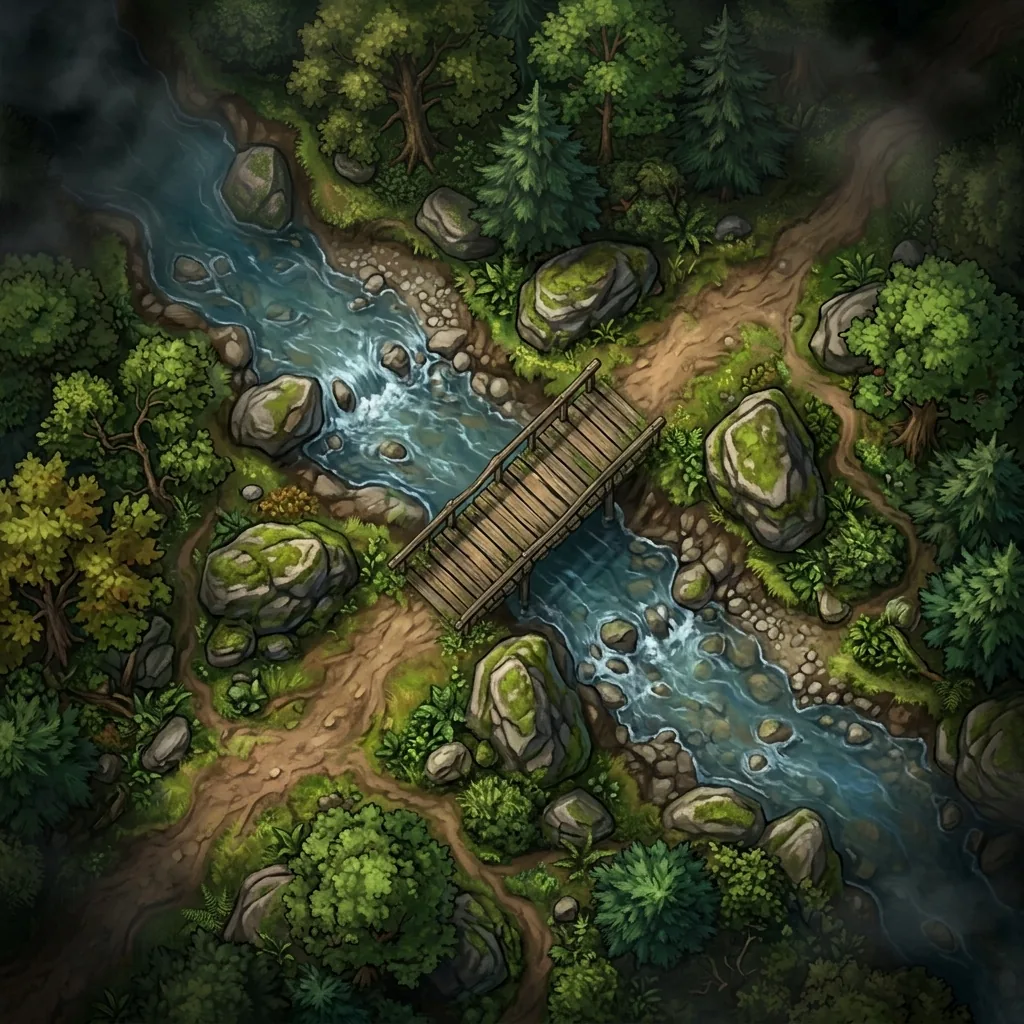
Owlbear Rodeo maps are the fastest route from "we should play tonight" to tokens actually moving on a grid. Owlbear Rodeo is a free, browser-based virtual tabletop famous for zero-friction rooms: you send your players a link, they click it, and they are in, with no accounts to create and no software to install. It even runs well on phones and tablets, which no other major VTT can honestly claim. The one place new Game Masters stumble is the map itself: how to add maps to Owlbear Rodeo, how to get the grid aligned on the first attempt, and how to set up fog of war that reveals itself instead of demanding constant manual erasing.
In this guide, we will walk through the full workflow: creating a room, uploading a battle map, using the filename trick that sets your grid automatically, aligning the grid by hand when you need to, and adding the Dynamic Fog extension for line-of-sight fog of war. We will finish with the shortcut that skips wall-drawing entirely: importing a .dd2vtt file so the walls and doors arrive pre-drawn.
What you need before you start
The requirements list is refreshingly short: a modern browser and a battle map image. Any PNG or WebP works, but two properties make setup dramatically faster. The first is knowing the grid dimensions of your map, such as 30 squares wide by 20 squares tall. The second is having no grid baked into the art, because a pre-printed grid that sits even half a square off from the VTT overlay will fight you at every step. Maps generated with an AI battle map generator like Text to Tabletop arrive gridless by design, with the grid dimensions known from your chosen resolution, which makes both halves of this checklist automatic.
Step 1: Create a room and share the link
Open Owlbear Rodeo in your browser and create a room. That is genuinely the whole step. The room lives at a shareable link, and anyone who has that link can join from a laptop, a phone, or a tablet at the table. There is no campaign wizard to click through and no player onboarding to schedule, which is why so many groups keep Owlbear Rodeo in their back pocket for pickup sessions even when their main campaign lives in a heavier VTT.
Step 2: Upload your battle map
Inside the room, open the map picker and upload your image. Owlbear Rodeo stores your uploaded maps so you can reuse them across sessions, and it is worth taking ten seconds to keep the collection tidy with clear names, because a library of files called "map-final-2.png" gets painful by the third session.
Resolution matters more here than in desktop VTTs because some of your players may be on phones. A 1K or 2K export loads fast on mobile connections and still looks sharp at tabletop zoom levels. Save 4K exports for sessions where everyone is on a laptop or when you plan to display the map on a large TV.
Step 3: Name the file with its grid size
This is the best trick in the entire Owlbear Rodeo workflow. If you include the grid dimensions in the filename, for example "ruined-keep 30x20.png", Owlbear Rodeo reads those numbers and sets the map's grid automatically. No dragging, no nudging, no counting squares. Upload, place, play.
Make renaming part of your export routine: generate the map, note its dimensions, and add "WxH" to the filename before you upload. It costs five seconds and removes the single most fiddly part of VTT prep. If you use one map across multiple systems, this filename convention travels with the file, so future imports stay just as fast.
Step 4: Align the grid manually when you need to
If you skipped the filename trick or grabbed a map with unknown dimensions, you can still align the grid by hand. Open the map's settings and adjust the number of columns and rows until the grid overlay matches the art. Count a recognizable feature, such as a doorway or a bridge, estimate how many squares wide the full image is, and refine from there.
This is where gridless art saves you real time. With no baked-in lines to match, any reasonable column count simply works, and furniture scale is your only guide. If the map has a pre-printed grid, you are stuck aligning line-on-line, and a map with margins or a decorative border will throw the count off. Crop the image to the playable area before uploading and the numbers get much friendlier.
Step 5: Add Dynamic Fog and draw your walls
Out of the box, Owlbear Rodeo keeps things intentionally simple, and its extension ecosystem is where the advanced features live. The Dynamic Fog extension adds line-of-sight fog of war: you draw walls over the map, attach vision to the player tokens, and the fog reveals itself room by room as tokens move, exactly the way a torchlit dungeon crawl should feel.
Drawing walls is straightforward but takes patience. Trace the load-bearing shapes, such as room boundaries, corridors, and doors, rather than every crack and buttress. Straight, simple segments that approximate the tactical boundaries will play identically to a painstaking trace, and small gaps between segments are the usual culprit when vision leaks through a "solid" wall, so close your corners.
Step 6: Import a .dd2vtt file and skip the walls entirely
Here is the real shortcut. The community uvtt-importer extension can read .dd2vtt files, a universal VTT format that packages the map image together with its grid data and wall and door definitions. Import one and the walls arrive pre-drawn: no tracing, no gaps, no patience required. If the format is new to you, our explainer on what a .dd2vtt file is covers how it works and which tools support it.
Text to Tabletop exports .dd2vtt natively, so a generated map can go from prompt to fully walled, fog-ready Owlbear Rodeo scene in a couple of minutes. For a broader look at moving maps between platforms, including Roll20 and Foundry, see our guide to using AI maps in VTT environments.
Why Owlbear Rodeo shines for hybrid and pickup games
Because players join by link on whatever device is in reach, Owlbear Rodeo occupies a niche the heavyweight VTTs cannot touch. For in-person hybrid tables, you can cast the room to a TV or prop up a tablet as the shared battle map while everyone rolls physical dice. For pickup games, a one-shot can go from "who is free tonight?" to initiative in fifteen minutes, because nobody has to install anything or recover a forgotten password.
That same lightness is the honest trade-off. You will not find deep character sheet automation or rules integration here, and groups that want full automation should look at heavier platforms. But for Game Masters whose bottleneck is prep time and player friction rather than missing features, the fit is excellent.
The generate, export, import workflow
Once the pieces are in place, your whole prep loop looks like this: describe the scene you need and generate the map, export it as a .dd2vtt file, and import it into your Owlbear Rodeo room with the walls and grid already set. What used to be an evening of asset-hunting and wall-tracing becomes a five-minute task you can do while the party argues about the marching order. To put the first half of that loop in place, sign up for the Text to Tabletop app today and start generating custom maps in seconds.
Tyler V
Lead Developer and UX Designer at Text to Tabletop. Passionate about helping GMs and players create better TTRPG experiences.
Ready to Forge Your Next Battle Map?
Describe the encounter and get a grid-aligned, top-down battle map in seconds — then regenerate any area until it matches your vision.
Generate Your First Map Free3 free map tokens · no credit card required